Digital Mixer Input Mapping – Part 1
For this tutorial we will look at the Yamaha O1V96i Mixer, the information is equally valid for most digital mixers with input mapping.
Planning is key to input mapping as it can very easily get out of hand. The first thing you must do is backup the settings before you start. On the O1V, this involved saving the settings to an unused scene.
Step 1: Look at the number of mic’s that require phantom power, it is best to group these together. On the O1V phantom power can be applied in three groups of four channels. 1-4, 5-8 and 9-12. Caution: ensure that no amp DI’s go to this group (click for more info). It is convenient if when using paired microphones that they use channels that can be operated as a pair, eg. 1&2 or 3&4 etc. but not essential as these can be mapped to channel pairs.
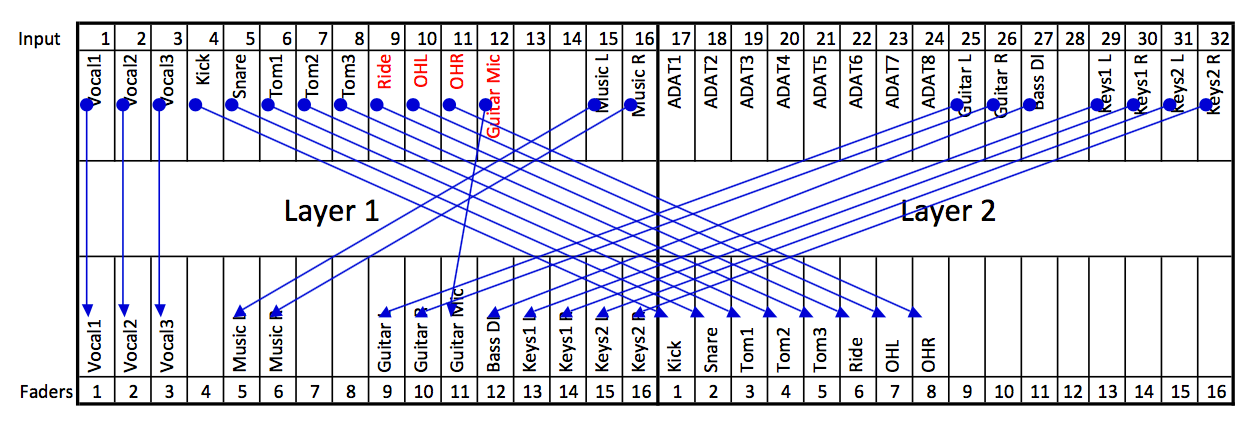
Step 2: Assign the input connections taking note of the limitations of step one. In this example we will assume 3 vocals mics, 8 drum mics, 1 guitar mic, 1 bass DI, 1 guitar stereo DI, 2 keyboards stereo DI and one incidental music. As there are 12 microphones in total and just 12 XLR inputs the order is as follows Vocals 1-3, Drums 4-11 and Guitar mic on 12. music arrives on 15/16 via two RCA sockets. Channels 17-24 are the ADAT inputs so are not included. Guitar DI is on 25/26, Bass Di is on 27, 28 is unused and Keyboards are two pairs 29/30 and 31/32.
Step 3: Assign the faders taking into account any operational requirements, all faders for FoH mix are on layer 1 (except drum bus). The lead vocal is on fader 1 and the two backing vocals are on fader 2&3. Fader 4 is unassigned, fader 5&6 are paired and control the incidental music. Faders 7&8 are unassigned. Faders 9&10 are paired for the guitar DI and fader 11 is the guitar mic. Fader 12 is the bass DI. Faders 13&14 are paired for keyboard one and faders 15&16 are paired for keyboard two. The drums all mapped to faders on the second control layer (channels 17-24) and are mixed as a group to a stereo bus.
Step 4: Draw a mapping chart before making any changes to the mixer controls. It should look something like this.
Next